Blog
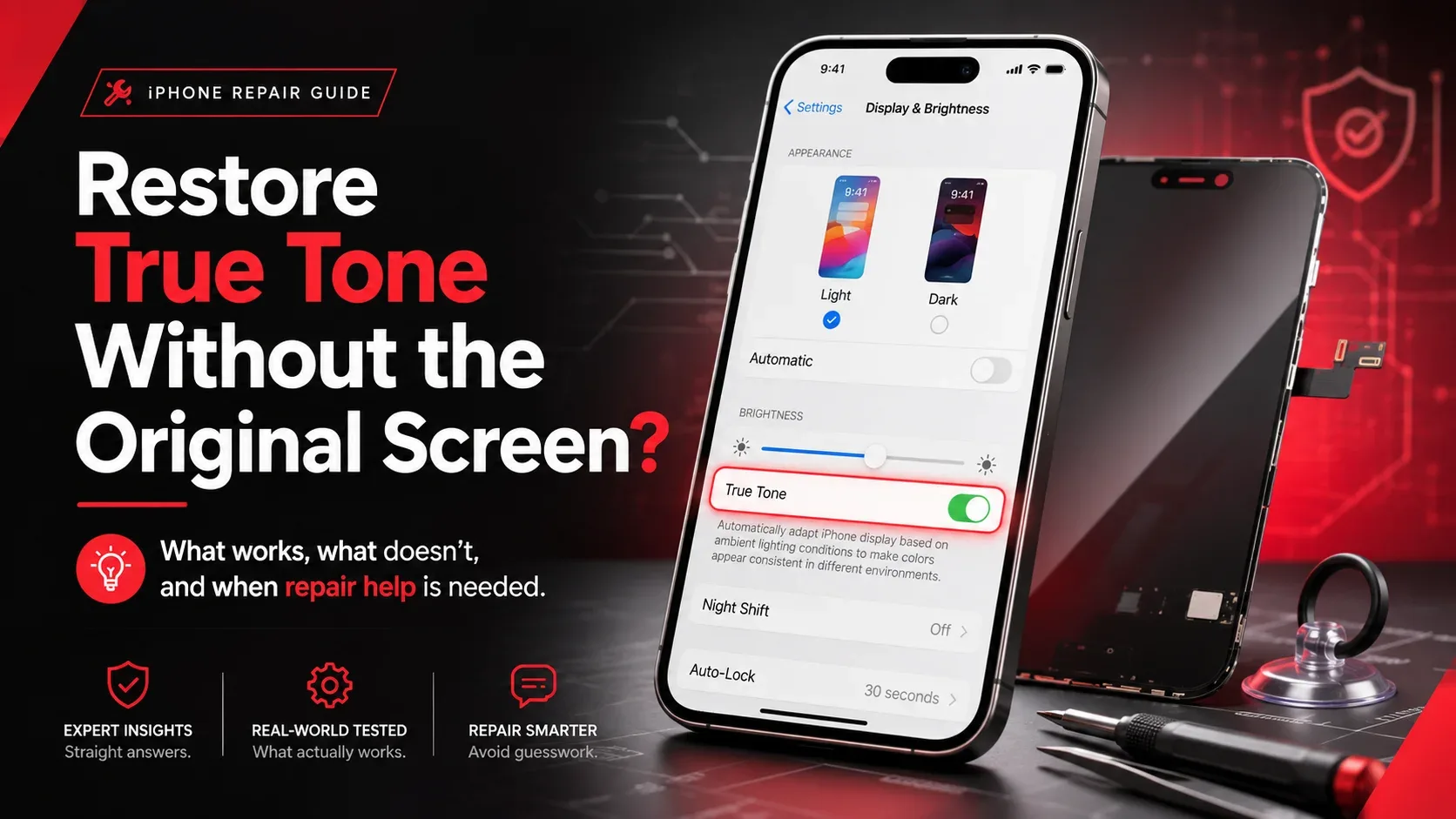
Can You Restore True Tone on an iPhone Without the Original Screen?
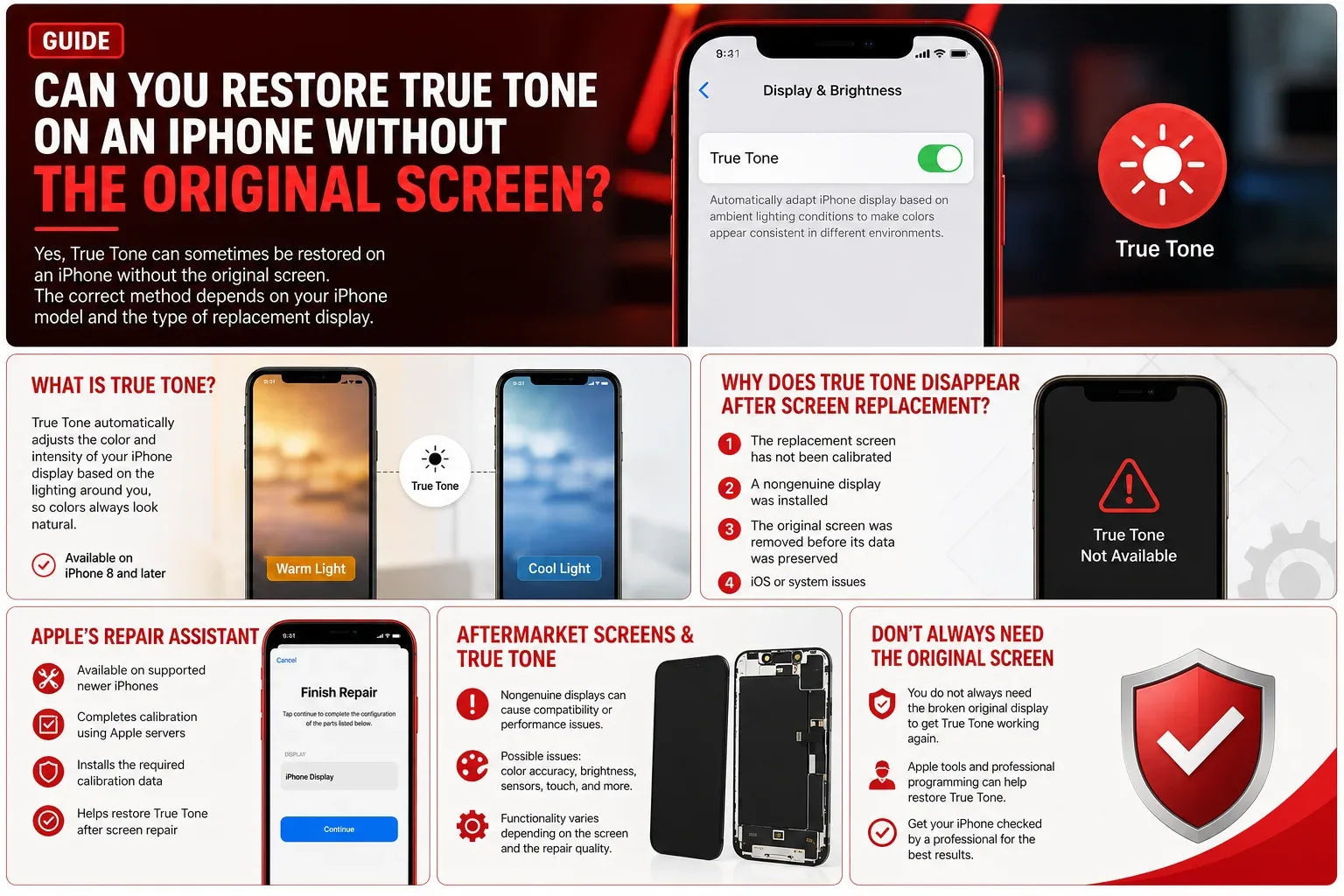
Yes, True Tone can sometimes be restored on an iPhone without having the original screen, but the correct method depends on the iPhone model and the type of replacement display installed.
On supported newer iPhones with a compatible genuine Apple replacement display, Apple’s Repair Assistant can install the calibration data required to finish the screen repair. With some aftermarket displays or older iPhone models, the situation is different and may require specialized technician level display programming.
The most important point is that you do not always need the broken original display to get True Tone working again.
However, simply restarting the iPhone, resetting settings, or repeatedly updating iOS normally will not solve a display calibration problem.
Here is how to determine which situation applies to your iPhone.
What Is True Tone on an iPhone?
True Tone is an iPhone display feature that automatically changes the color and intensity of the screen based on the lighting around you.
For example, under warmer indoor lighting, the screen may become slightly warmer. Under different lighting conditions, it adjusts again so whites and other colors appear more natural.
Apple says True Tone uses advanced sensors to adjust the display according to ambient light.
True Tone is available on iPhone 8 and later, including supported iPhone SE models.
You can normally find it under:
Settings → Display & Brightness → True Tone
If the True Tone option disappeared after a screen replacement, the display repair or calibration process is a likely place to investigate.
Why Does True Tone Disappear After an iPhone Screen Replacement?
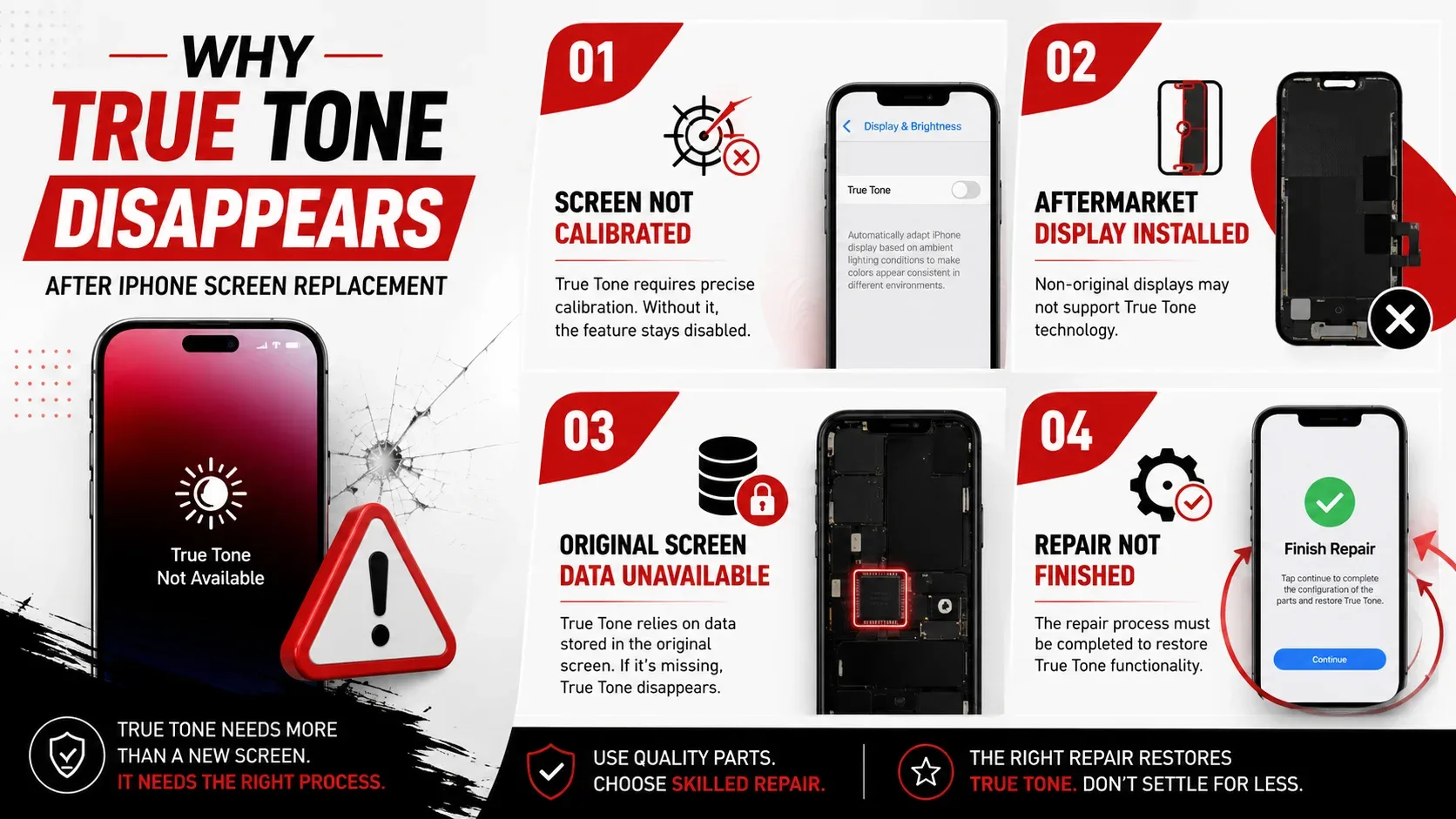
True Tone is more complicated than simply installing a screen that can display the correct colors.
The iPhone display and iOS work together using calibration information.
Apple explains that genuine parts are individually calibrated and that calibration data is used to finish supported repairs.
When a display is replaced but the calibration process is not completed correctly, features such as True Tone may not work as expected.
There are several common situations.
1. The Replacement Screen Has Not Been Calibrated
On supported iPhones, a replacement display may need to complete Apple’s calibration process.
If this process is unfinished, go to:
Settings → General → About → Parts & Service History
You may see:
Finish Repair
next to Display.
This is different from a completely unsupported or unrecognized screen.
2. A Nongenuine Display Was Installed
Apple warns that nongenuine iPhone displays can cause compatibility or performance issues.
Possible display related problems include:
- True Tone not working correctly
- incorrect color calibration
- reduced or uneven brightness
- degraded ambient light sensor performance
- touch problems
- incorrect automatic brightness behavior
This does not mean every aftermarket display will have all of these problems.
It means functionality can vary depending on the screen and how the repair was completed.
3. The Original Screen Was Removed Before Its Data Was Preserved
Historically, many independent repair methods restored True Tone by transferring display related calibration information from the original screen to the replacement display.
This is why older repair tutorials frequently tell technicians to keep the original screen.
If the original display has already been discarded or is completely unavailable, those traditional copy from old screen methods obviously cannot be used.
However, that does not automatically mean True Tone is permanently lost.
Current Apple supported repair options and some professional repair systems can work differently.
4. The Screen Has Not Been Properly Verified
On compatible iPhones, check:
Settings → General → About → Parts & Service History
You may see one of several messages.
| Display Status | What It Generally Means |
|---|---|
| Genuine | Apple has verified the part and repair process |
| Used | A supported genuine part was previously used in another compatible iPhone |
| Finish Repair | Calibration still needs to be completed |
| Unknown | The display cannot currently be verified as expected |
An Unknown display does not automatically mean that the screen is fake.
Apple says Unknown can appear when a display:
- is not a genuine Apple part
- is not functioning as expected
- has not been properly verified and linked after repair
- has been modified or otherwise cannot be verified
Can True Tone Really Be Restored Without the Original Screen?
The short answer is:
Sometimes, yes.
But there are three very different repair situations.
Scenario 1: Genuine Compatible Replacement Display
This is currently the cleanest situation.
On supported iPhones, Apple provides Repair Assistant to finish display repairs and install calibration information.
For a properly supported repair, you may not need the damaged original screen to copy its old display data manually.
Repair Assistant currently supports display repairs on:
- iPhone 12 series
- iPhone 13 series
- iPhone 14 series
- iPhone 15 series
- iPhone 16 and later supported models
The exact repair options can depend on the device, part, software version, and whether the replacement component is eligible for calibration.
Scenario 2: Genuine Used iPhone Screen
Apple has expanded support for previously used genuine parts on newer devices.
On supported iPhone 15 and later models, a compatible genuine part previously used in another iPhone of the same model may be reusable through Apple’s repair process.
After successful calibration, Parts and Service History may identify it as:
Used
rather than Unknown.
This makes newer iPhones different from many older True Tone repair tutorials found online.
Scenario 3: Aftermarket Replacement Screen
This is where the answer becomes more complicated.
Apple’s official calibration system is designed around supported parts and repair processes.
An aftermarket display may not be recognized or calibrated in the same way as an eligible genuine Apple display.
Independent repair technicians have historically used specialized display programmers to transfer or recreate certain display information for compatible aftermarket screens.
However, this is not one universal process that works on every iPhone.
Success can depend on:
- iPhone model
- iOS version
- replacement display design
- programmer compatibility
- available calibration information
- whether required sensors or original components are intact
This is why a technique demonstrated on an iPhone X or XS should not automatically be assumed to work on an iPhone 13, 14, 15, or newer model.
How to Restore True Tone Without the Original Screen
Start with the official software level checks before assuming hardware programming is necessary.
Step 1: Check Whether True Tone Is Actually Missing
Open:
Settings → Display & Brightness
Look for:
True Tone
If the option is available but switched off, simply turn it on.
If True Tone is completely missing, continue troubleshooting.
Step 2: Check Parts and Service History
Go to:
Settings → General → About
Then look for:
Parts & Service History
Check what appears next to:
Display
Possible results include:
- Genuine
- Used
- Finish Repair
- Unknown
This step is extremely important because each status points toward a different solution.
Step 3: Look for “Finish Repair”
If Finish Repair appears next to Display, do not immediately replace the screen again.
Your iPhone may simply need to complete Apple’s calibration process.
Apple’s Repair Assistant is designed for this situation.
Before starting, make sure:
- your iPhone is connected to Wi-Fi
- the battery is above 20%
- the iPhone is running the latest compatible version of iOS
Then open:
Settings → General → About → Parts & Service History
Select:
Restart & Finish Repair
Follow the instructions displayed on the iPhone.
The device will complete the supported calibration process.
Afterwards, return to:
Settings → Display & Brightness
and check whether True Tone is available.
Step 4: Update iOS
If Repair Assistant should be available but you cannot find it, make sure your iPhone is updated.
Go to:
Settings → General → Software Update
Install the latest compatible iOS version.
Then restart the device and check:
Settings → General → About → Parts & Service History
again.
An update by itself does not magically calibrate every replacement screen.
Its importance is that Apple’s current repair and calibration tools require supported software.
Step 5: Confirm What Type of Screen Was Installed
If someone else replaced your screen, ask the repair provider:
- Was a genuine Apple display installed?
- Was it a new or previously used display?
- Was an aftermarket display installed?
- Was the repair calibration completed?
- Does this display support True Tone?
- Why does Parts and Service History show Unknown or Finish Repair?
These questions can save you from unnecessary troubleshooting.
For example, Repair Assistant and technician level aftermarket display programming are two completely different repair paths.
Step 6: If It Is an Aftermarket Screen, Get It Professionally Checked
Some compatible aftermarket displays can support True Tone when the necessary display information has been correctly programmed.
Repair technicians may use specialized display programming equipment for this purpose.
However, the methods shown in many older online tutorials were created for specific iPhones and older versions of iOS.
A technician should first identify:
- your exact iPhone model
- the replacement display manufacturer and type
- whether the display supports programming
- whether the required calibration information can be recovered
- whether another display would be a better solution
This is usually more sensible than buying programming equipment for a single repair.
Can Repair Assistant Restore True Tone?
For a supported display repair, Repair Assistant can complete the calibration process that allows the replacement display to work as expected.
Apple currently lists Display as a Repair Assistant supported component for the iPhone 12 and newer supported iPhone families.
To use it:
- Update the iPhone.
- Connect to Wi-Fi.
- Make sure battery charge is above 20%.
- Open Settings.
- Tap General.
- Tap About.
- Open Parts & Service History.
- Select Restart & Finish Repair if available.
- Follow the onscreen instructions.
If Repair Assistant successfully finishes the display repair, check True Tone again afterward.
What If “Restart & Finish Repair” Is Not Showing?
There are several possibilities.
The iPhone may:
- not support Repair Assistant for that display
- be running outdated iOS software
- have an incompatible replacement screen
- contain an aftermarket screen that Apple’s system cannot calibrate
- already have a completed repair status
- have another repair or parts verification issue
Check the exact message under Parts and Service History before deciding what to do next.
If a repair shop installed the display, contact that shop and ask it to verify the repair.
Can You Restore True Tone on an Aftermarket Screen?
Sometimes, but not in every situation.
Aftermarket displays vary significantly.
Some replacement screens are designed to accept transferred display information and can retain or restore True Tone when programmed correctly.
Other screens may not provide the same result.
Apple also warns that nongenuine displays can experience problems with True Tone, color accuracy, brightness, ambient light sensing, and touch performance.
Therefore, the better question is not simply:
“Is the screen aftermarket?”
It is:
“Is this particular screen compatible with the iPhone and capable of being correctly calibrated or programmed?”
That requires knowing the exact display and iPhone model.
Do You Need the Original Screen to Restore True Tone?
Not always.
This is an important update compared with many old repair guides.
You may not need the original screen when:
- a supported genuine replacement display can be completed through Repair Assistant
- a compatible repair process can obtain the required calibration information another supported way
- a professional technician has a compatible solution for that specific display and iPhone model
The original screen is especially useful when:
- an older repair method depends on copying its display data
- an aftermarket screen needs data transferred from the original display
- the technician needs the old screen for diagnosis or component comparison
Keeping the original broken screen is still a good idea whenever possible, but losing it does not automatically make True Tone restoration impossible.
Can You Restore True Tone by Resetting the iPhone?
Usually not.
If True Tone disappeared because the replacement screen has not been correctly calibrated or recognized, a factory reset does not solve the underlying display issue.
Avoid erasing your iPhone simply to troubleshoot missing True Tone.
A better first sequence is:
Check True Tone → Check Parts and Service History → Update iOS → Run Repair Assistant if available → Have the display professionally diagnosed
This protects your data and targets the actual cause.
Can an iOS Update Bring True Tone Back?
An iOS update alone is not a guaranteed fix.
However, updating is important when you are trying to finish a supported display repair because Repair Assistant requires the latest compatible iOS version.
Think of the update as an enabler for calibration, not as the calibration itself.
Does Missing True Tone Mean the Screen Is Fake?
No.
Missing True Tone alone does not prove that the replacement display is fake.
Possible explanations include:
- unfinished calibration
- an unverified display
- a nongenuine display
- incompatible replacement hardware
- missing display calibration information
- a repair that was not completed correctly
- another display or sensor related issue
Check Parts and Service History instead of judging the screen from True Tone alone.
True Tone Missing but Screen Says Genuine: What Should You Do?
If Parts and Service History shows Genuine, but True Tone is still missing or behaving incorrectly, first check your display settings.
Open:
Settings → Display & Brightness
Then check whether True Tone appears.
Also check whether accessibility display options are affecting it.
If the setting remains missing or the display behaves abnormally after a completed repair, have the iPhone inspected.
The issue may involve something other than basic parts verification.
Does True Tone Affect Face ID?
True Tone and Face ID are separate functions.
Losing True Tone after a screen replacement does not automatically mean Face ID should stop working.
If both True Tone and Face ID fail after a repair, there may be another issue involving the repair or front sensor system that needs diagnosis.
Do not assume that restoring True Tone will automatically repair Face ID.
Is True Tone the Same as Auto Brightness?
No.
They are related to the way the display responds to your environment, but they perform different jobs.
True Tone adjusts the color and intensity of the display according to ambient light.
Auto Brightness changes how bright the screen is based on surrounding lighting conditions.
A poor or incompatible display repair can potentially affect either feature.
If both stop working after screen replacement, tell the technician because that information can help with diagnosis.
Does True Tone Matter?
Your iPhone can generally still be usable without True Tone.
True Tone mainly changes the way screen colors appear under different lighting conditions.
However, if True Tone suddenly disappeared immediately after a screen replacement, it can also be a useful sign that the display repair or calibration process was not completed as expected.
That makes it worth checking the repair status even if you can live without the feature.
How to Check Whether Your Replacement iPhone Screen Is Recognized
For supported iPhones:
- Open Settings.
- Select General.
- Tap About.
- Scroll to Parts & Service History.
- Look beside Display.
If it says:
Genuine
The repair was completed using a recognized genuine Apple part and process.
Used
On supported devices, the display was previously installed in another compatible iPhone.
Finish Repair
The repair still needs calibration.
Unknown
The display cannot currently be verified as expected.
This information is much more useful than guessing based only on whether True Tone appears.
What Is the Best Solution If the Original iPhone Screen Is Gone?
Use this decision path.
| Your Situation | Recommended Next Step |
|---|---|
| True Tone is simply switched off | Turn it on in Display & Brightness |
| Display shows Finish Repair | Run Repair Assistant |
| Genuine screen recently installed | Complete calibration and recheck |
| Used compatible genuine display on supported newer iPhone | Check Repair Assistant |
| Aftermarket screen | Ask whether the display supports True Tone programming |
| Display shows Unknown | Have the repair and display verified |
| True Tone and other display features fail | Professional display diagnosis |
| Screen also has touch, brightness, or color problems | Screen inspection or replacement may be required |
The goal should be to identify why True Tone is missing before replacing another component.
When Should You Get Professional Screen Service?
Professional diagnosis is the better option if:
- True Tone disappeared immediately after screen replacement
- the original display is no longer available
- Repair Assistant cannot finish the repair
- Display shows Unknown
- an aftermarket screen was installed
- auto brightness also stopped working
- screen colors look incorrect
- brightness is unusually low
- touch response has changed
- the display flickers or behaves inconsistently
- you do not know what replacement screen was installed
A repair technician can inspect the display and determine whether the issue is calibration, compatibility, or the replacement screen itself.
Can CELLTECH Restore True Tone After an iPhone Screen Replacement?
If True Tone disappeared after your iPhone screen was replaced, the first step should be identifying what display is installed and whether the repair was properly completed.
CELLTECH provides professional smartphone screen diagnostics and screen replacement services.
A technician can check:
- your iPhone model
- replacement display condition
- display compatibility
- Parts and Service History
- True Tone behavior
- brightness and color performance
- touch functionality
- related screen problems
If another display repair is required, CELLTECH can explain the available repair options before replacing the screen.
This is especially useful when you no longer have the original display and are unsure what type of replacement screen is currently installed.
Frequently Asked Questions
Yes, in some cases. Supported genuine display repairs can use Apple’s Repair Assistant for calibration, while certain aftermarket configurations may require professional programming. The solution depends on the iPhone model and replacement screen.
First check Settings → General → About → Parts & Service History. If Display shows Finish Repair, update iOS and use Repair Assistant. If an aftermarket display is installed, ask the repair provider whether the screen supports True Tone programming.
The replacement screen may not have been calibrated, may not be properly recognized, may be incompatible, or may be a nongenuine display that does not support the feature correctly.
Repair Assistant can complete calibration for supported display repairs. Apple currently supports display repair completion through Repair Assistant on iPhone 12 and later supported models.
Some aftermarket displays can support True Tone when compatible calibration information is correctly programmed, but results vary. Apple does not guarantee the same functionality from nongenuine displays.
An update alone usually does not fix missing display calibration. However, the latest compatible iOS is required to use Repair Assistant.
A factory reset normally will not correct an uncalibrated or incompatible replacement screen. Check the repair status before considering any reset.
Not in every case. Apple’s current calibration workflow can complete certain supported genuine replacement display repairs without manually copying data from the broken original screen.
It means the installed part still needs the supported repair calibration process to be completed. On a compatible device, open Parts and Service History and use Repair Assistant.
Apple says Unknown can appear when a display is nongenuine, does not function as expected, has not been properly verified and linked after repair, or otherwise cannot be verified.
No. True Tone and Face ID are separate functions. If both fail after a screen replacement, the device should be inspected for an additional repair issue.
True Tone itself is a display color adjustment feature, so an iPhone can generally still function without it. However, if it disappeared after repair and other display problems are present, the replacement screen should be checked.
Get Your iPhone Display Checked at CELLTECH
If you are trying to restore True Tone without the original screen on an iPhone, do not assume the feature is permanently lost.
Modern supported iPhones may be able to complete genuine display calibration through Apple’s Repair Assistant. Aftermarket screens and older devices can require a different approach, and compatibility varies.
Start by checking:
Settings → General → About → Parts & Service History
If you see Finish Repair, complete the supported calibration process.
If you see Unknown, or True Tone remains missing after the repair is completed, have the replacement display professionally inspected.
Visit your nearest CELLTECH location for professional iPhone screen diagnostics and repair assistance.